Class Management: Coupon
Step 1: Access https://coursemind.io/courses
Step 2: Access a class that you manage.
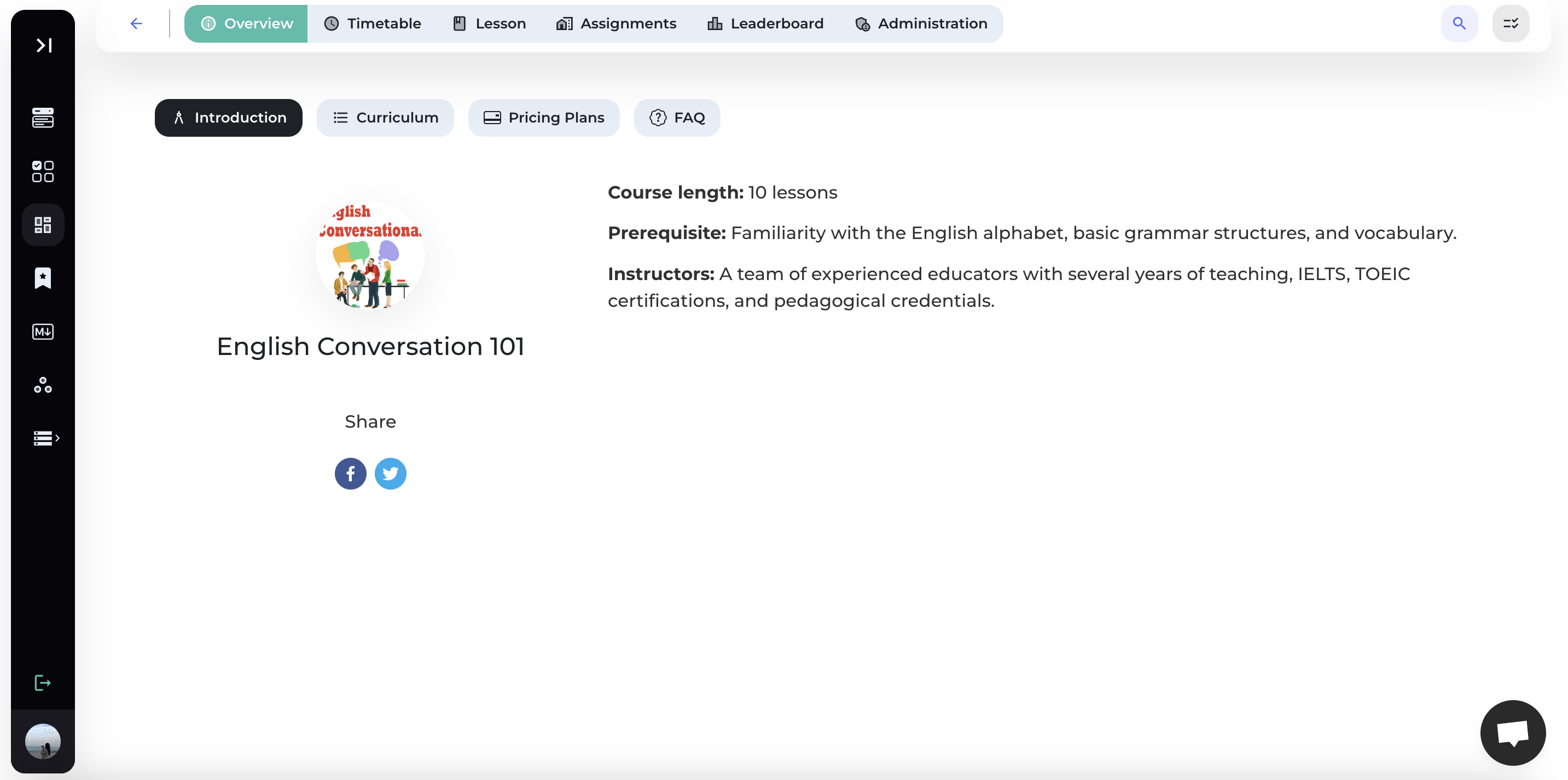
Step 3: Select [Administration] on the toolbar.
Step 4: Select [Coupons] to create and manage coupons.
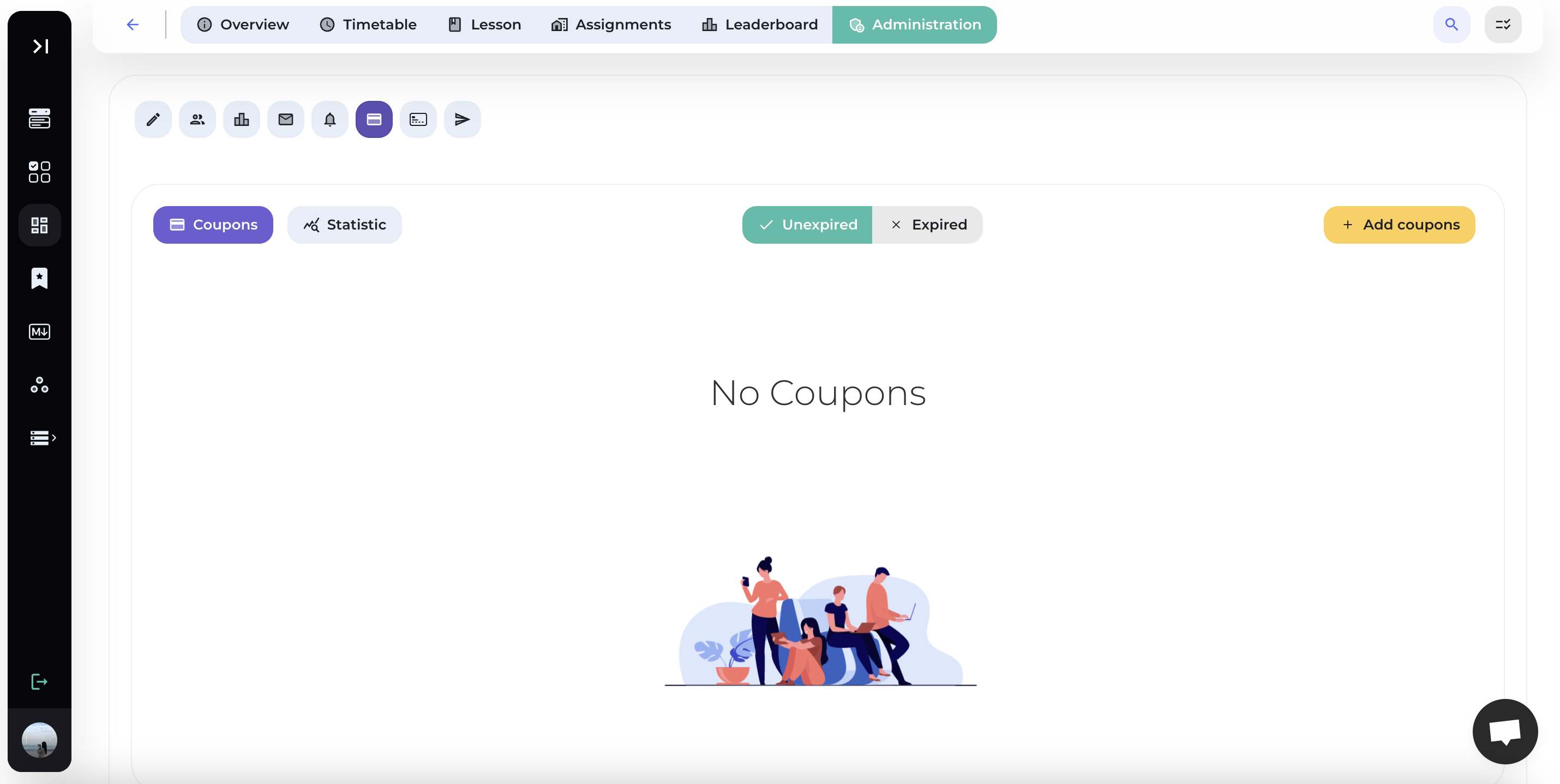
1. Create coupon
Step 1: Select [Add coupon]
Sellect [Add coupon] on the toolbar to create coupon for your course.
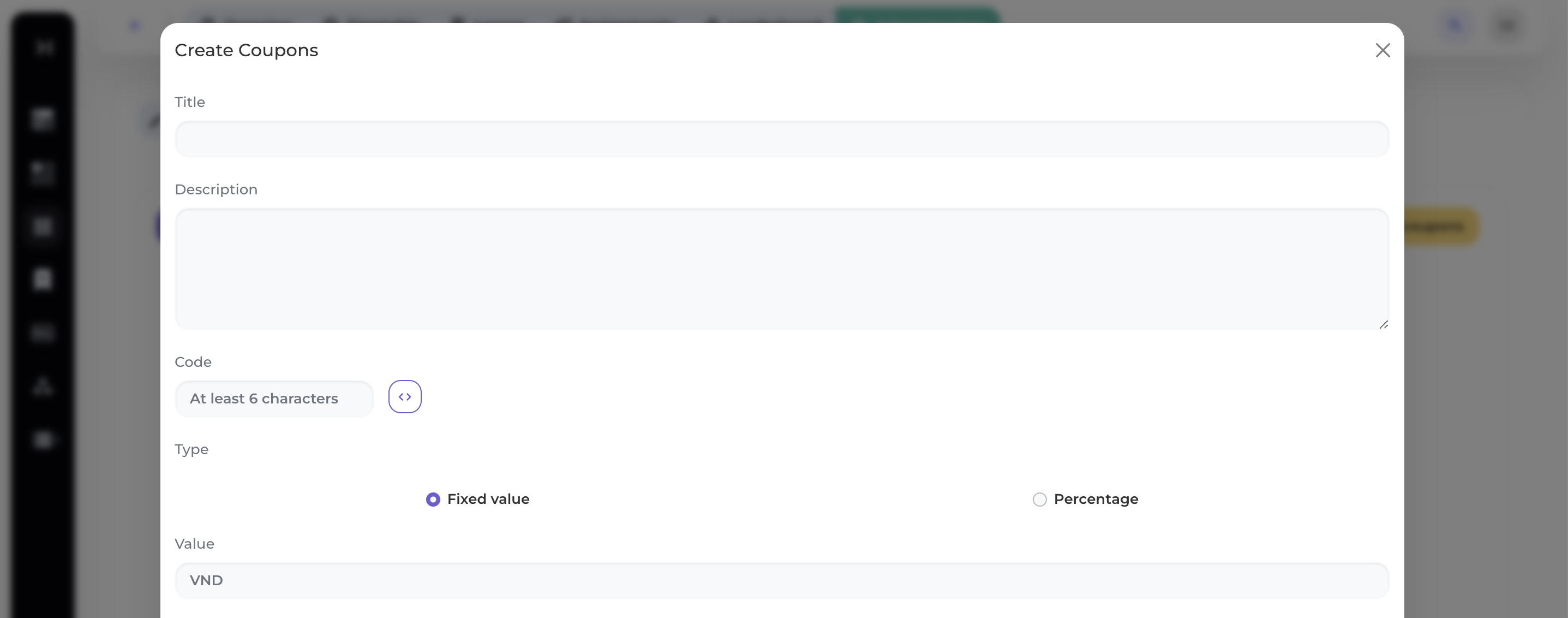
Step 2: Enter coupon details.
Enter the required information to create a coupon, including:
- Title
- Description
- Code: Enter the code or press the symbol to auto-generate the code.
- Choose the type of coupon: Fixed value or Percentage (%)
- Enter the value of the discount code: Amount or percentage (%).
- Expiration date: The expiration time of the discount code.
- Maximum usage: The maximum number of times the discount code can be used.
- Status: The status of the discount code (Draft/Active/Inactive).
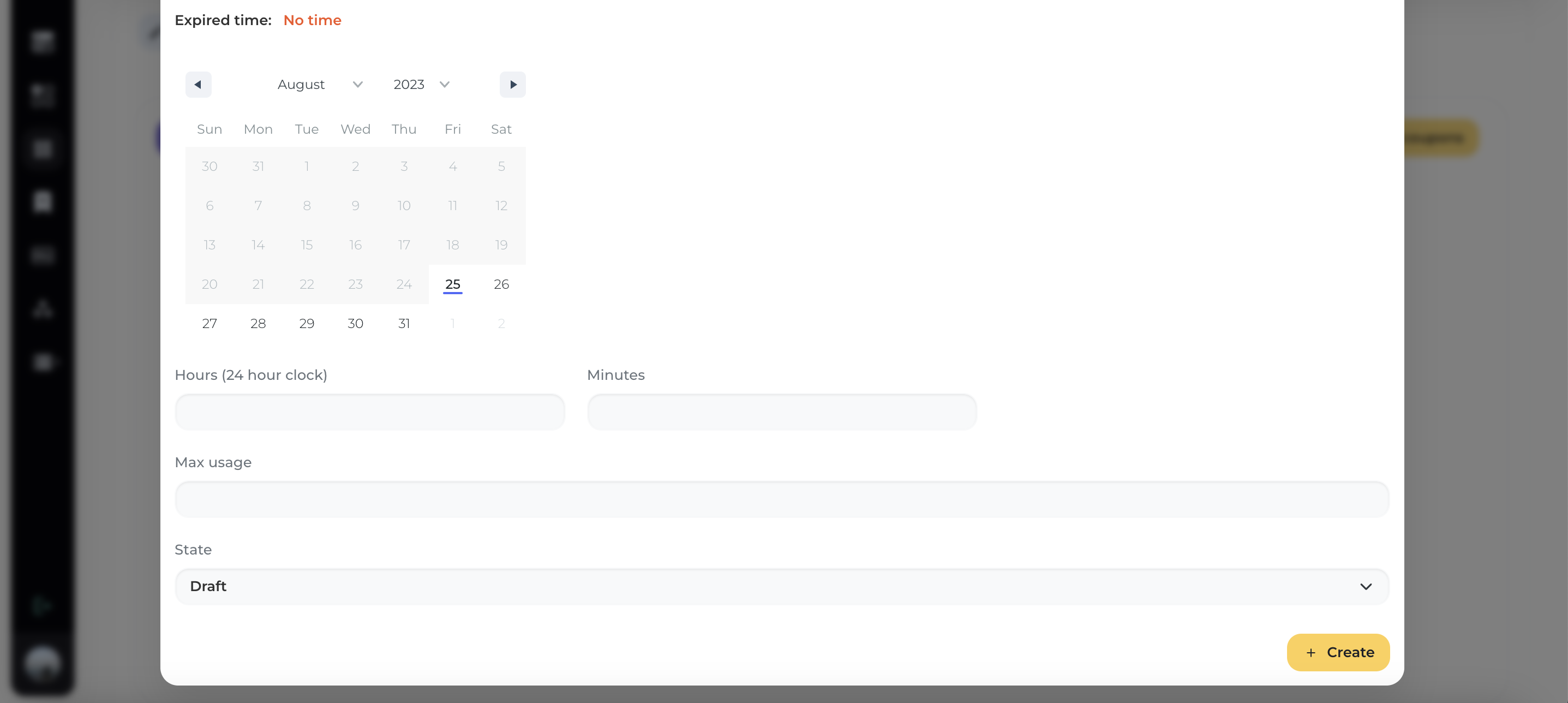
Step 3: Save coupon
Select [Create] to save and create the coupon.
2. List of coupons.
Display screen showing the list of coupons you have created for the course.
List of coupons and detailed information.
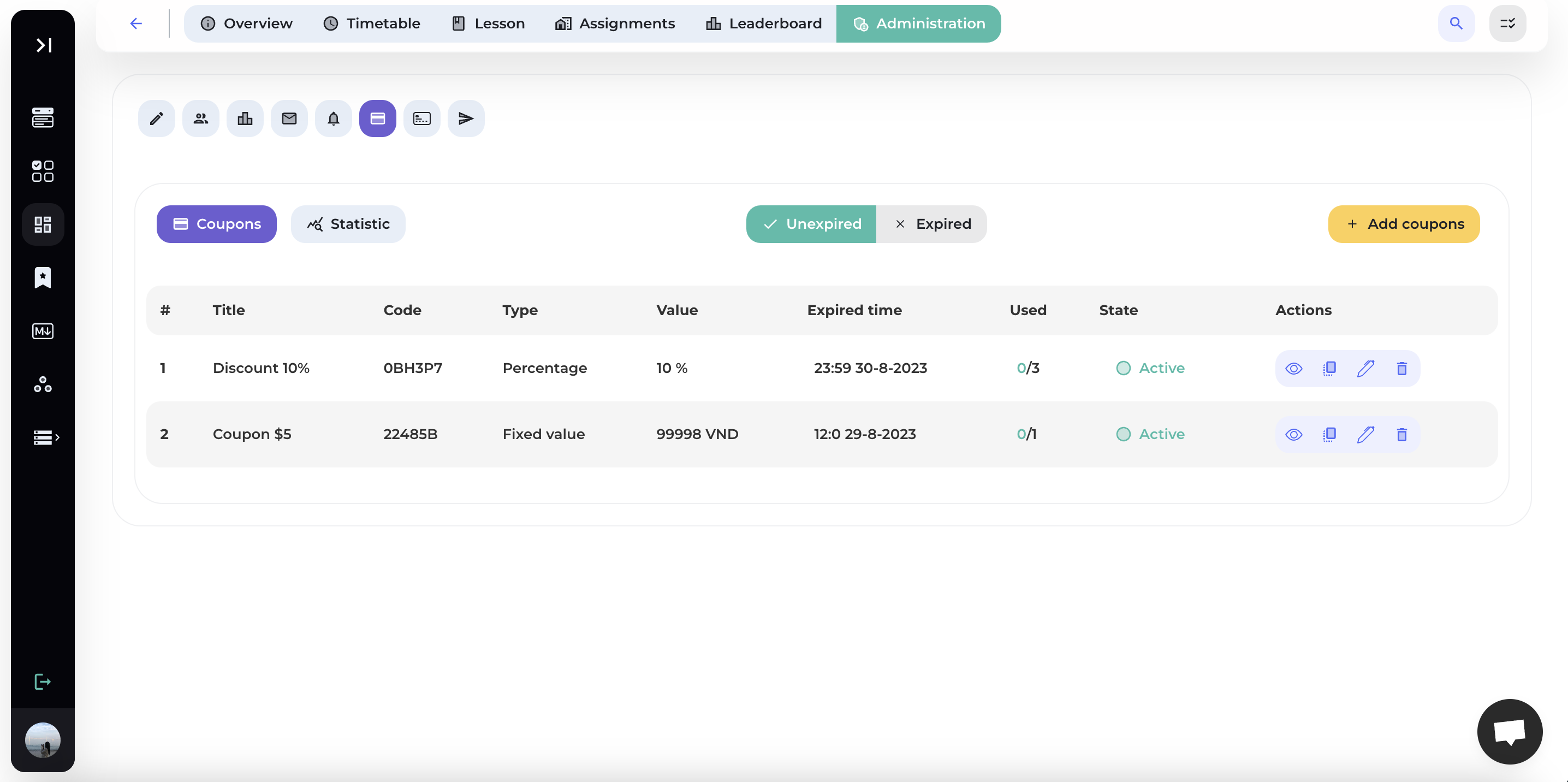
Display the list and detailed information of the coupons, including: Title, Code, Type, Value, Expired Time, Used, State and Actions.
Filter coupons by status.
Press [Unexpired]/[Expired] on the toolbar to display the list of coupons based on their status.
Action
Perform actions related to a specific discount code, including: View, Copy, Edit, Delete.
3. View Coupon
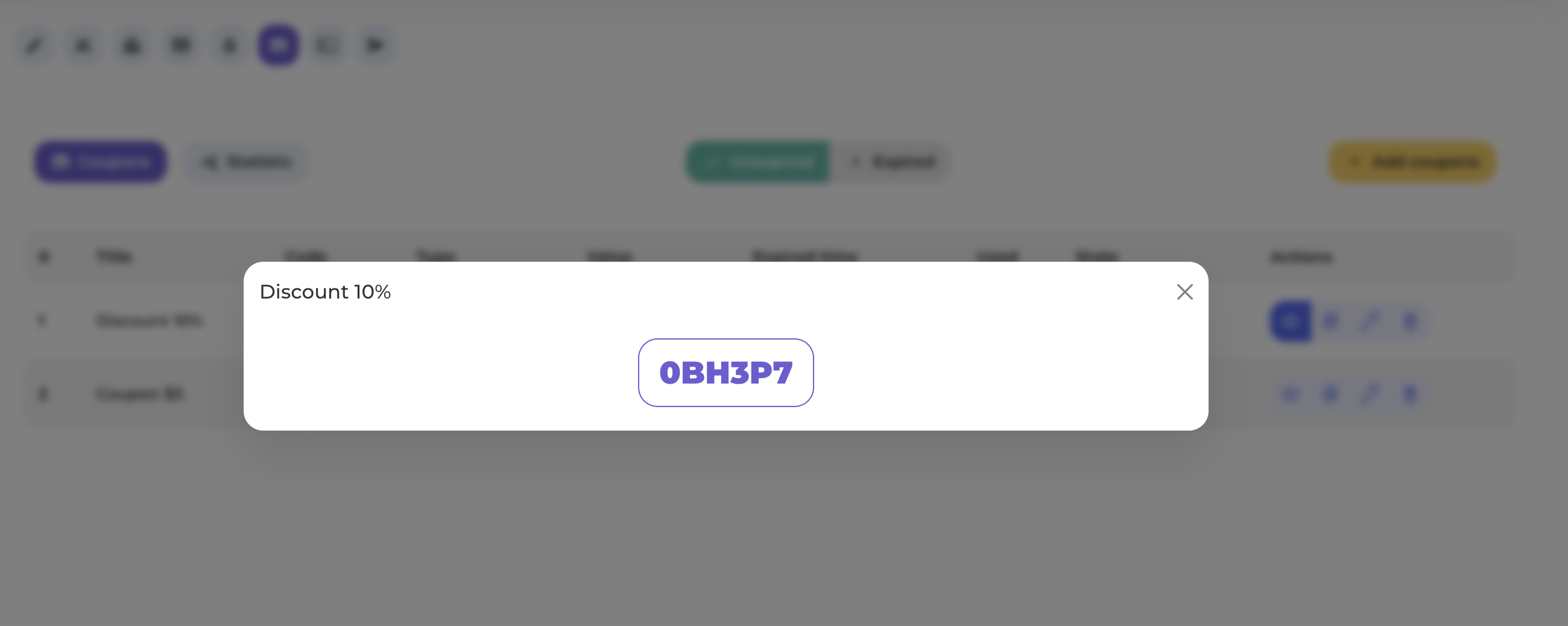
Click the "View" icon in the Actions column to see the coupon.
4. Copy Code
Click the "Copy Code" icon in the Actions column to copy the code.
5. Edit Coupon
Step 1: Select "Edit Coupon".
Click the "Edit" icon in the Actions column to edit the coupon.
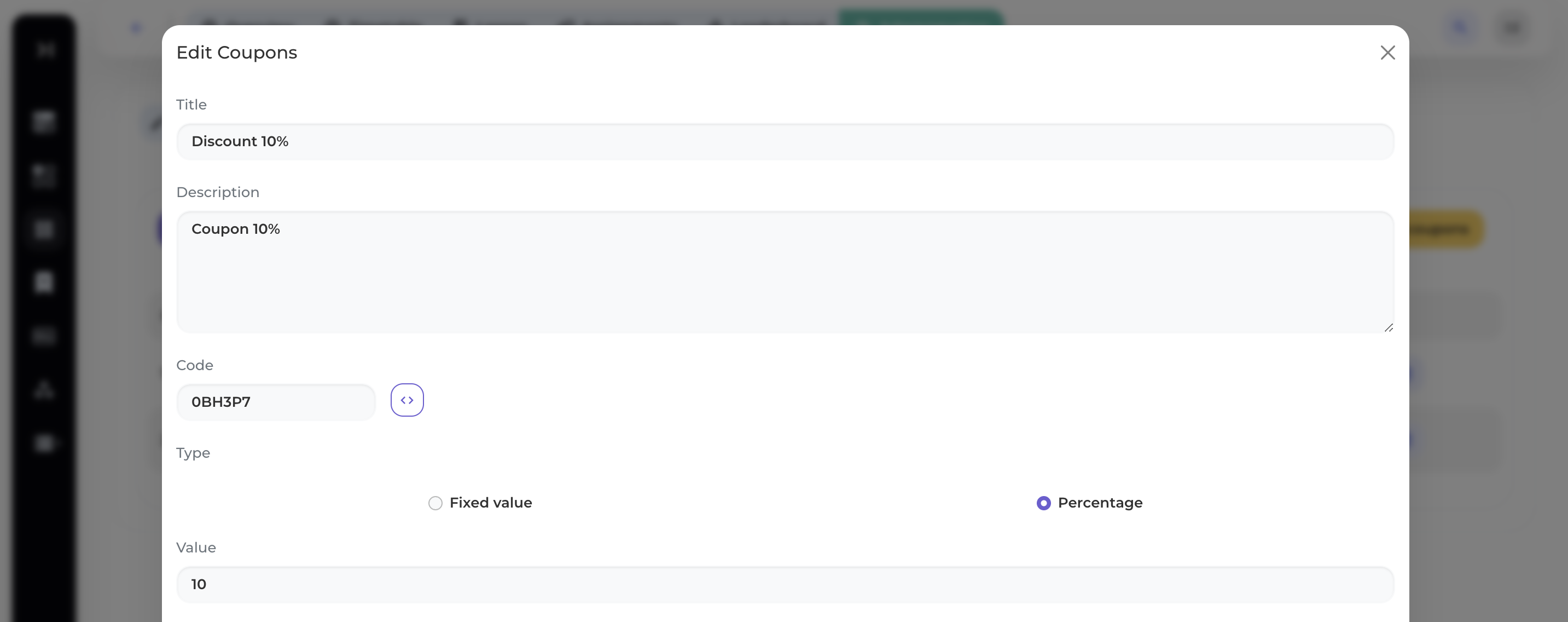
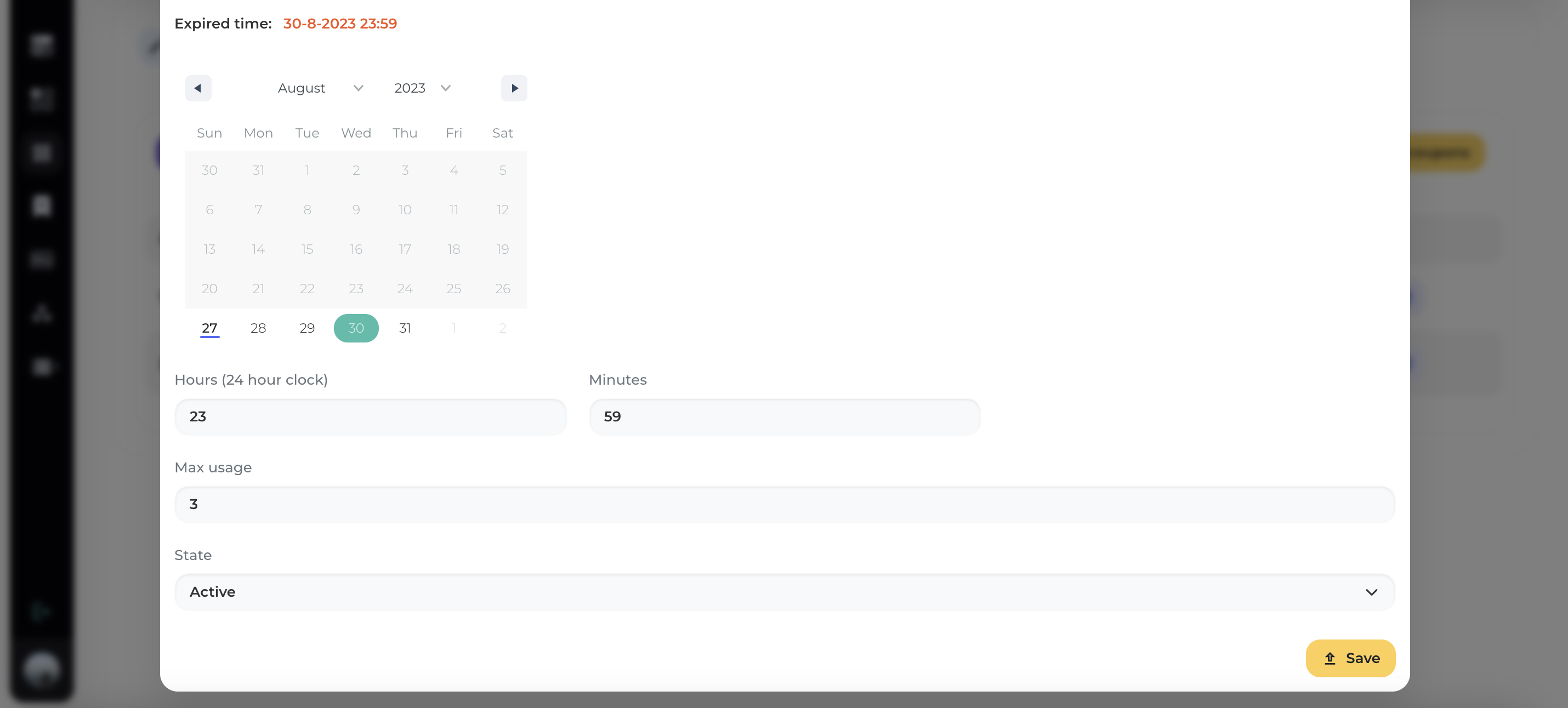
Step 2: Edit the details of the coupon.
Input the information you wish to edit.
Step 3: Save
Select [Save] to save and update the coupon's information.
6. Delete Coupon
Click the "Delete" icon in the Actions column to delete the coupon.